
AI Image Editor
Online tool for generating images, editing uploads, making short clips, removing backgrounds, and upscaling drafts.
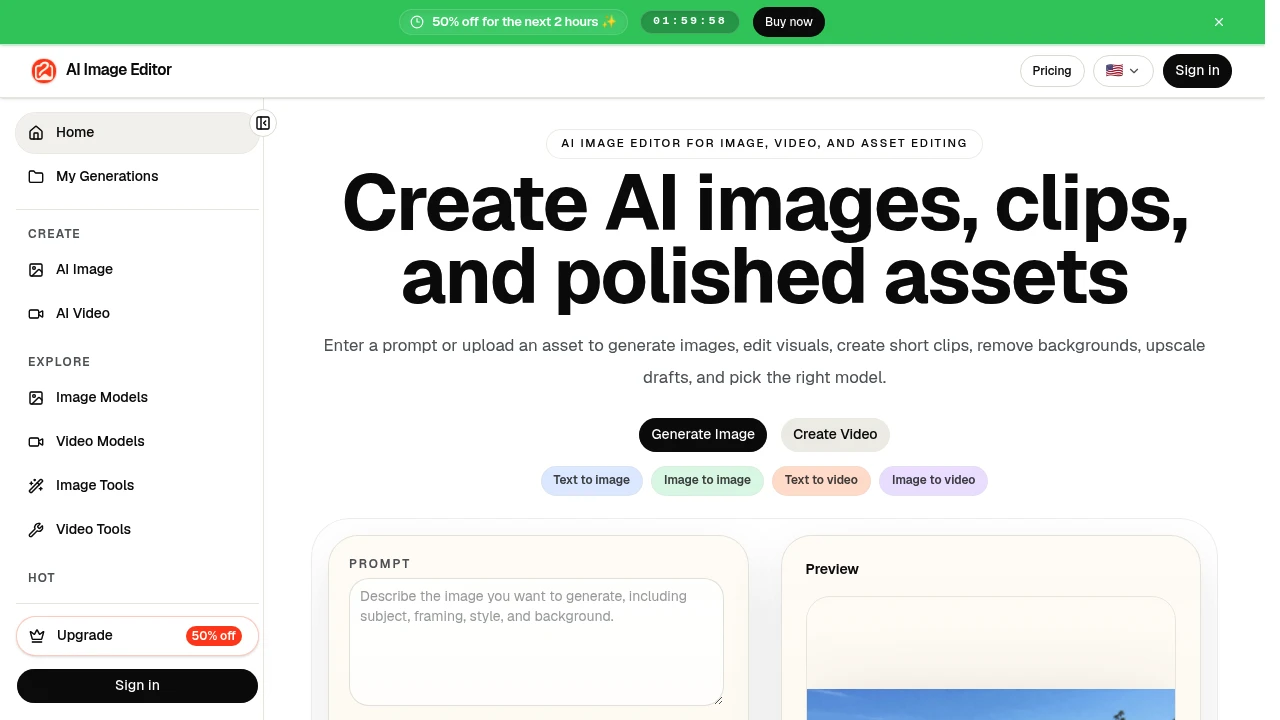
AI Image Editor is an online workspace for teams and creators who need to generate, edit, and refine visual content without moving between separate tools. It is built for people who need more than a blank prompt box and want to work from both written ideas and existing images.
The platform brings prompt-based image generation, image editing, short video creation, background removal, cutouts, visual effects, and upscaling into one workflow. Users can start with a prompt, upload an existing image, use reference visuals, change the aspect ratio, switch models, and create multiple versions of the same asset for different channels.
Key Features
Prompt-to-Image Generation
Create visual content from a written prompt.
AI Image Editor allows users to generate images for different creative and marketing purposes.
This can include:
- Scenes
- Posters
- Product visuals
- Concept drafts
- Advertising creatives
- Social media graphics
- Thumbnail concepts
- Launch visuals
This gives users a way to turn an idea or creative brief into a visual starting point without needing an existing image.
Image-to-Image Editing
Modify existing images and create new versions from them.
AI Image Editor supports workflows built around uploaded images, allowing users to keep an existing visual as the starting point for further changes.
This can be used for:
- Background changes
- Style shifts
- Object edits
- Image cleanup
- Visual variations
- Alternate creative directions
- Refining existing assets
This can be useful when a team already has a product image, campaign asset, or visual concept and wants to explore changes without rebuilding the entire image from scratch.
Reference Image Support
Use existing visuals to guide the generated output.
AI Image Editor allows users to work with reference images when generating or editing content.
Reference visuals can help provide direction around:
- Visual style
- Composition
- Subject appearance
- Product presentation
- Layout
- Creative direction
This makes it easier to keep generated variations connected to the original creative brief or source material.
Text-to-Video and Image-to-Video
Create short motion content from text or existing images.
AI Image Editor supports both text-to-video and image-to-video workflows for users who want to create short clips and motion-based visual content.
This can be used for:
- Motion tests
- Teaser clips
- Product animations
- Social media videos
- Launch visuals
- Short creative experiments
Users can move between static image work and video generation without treating them as completely separate workflows.
Background Removal and Cutouts
Remove backgrounds and isolate visual subjects.
The platform includes tools for creating cleaner product and marketing assets by separating a subject from its original background.
This can be useful for:
- Product photography
- Ecommerce galleries
- Advertising creatives
- Social media graphics
- Marketing compositions
- Cutout assets
- Reusable visual elements
This allows a source image to be reused in different layouts and creative directions.
Image Upscaling
Improve rough visual drafts for clearer review and use.
AI Image Editor includes upscaling capabilities for refining generated or existing images.
This can help prepare:
- Review-ready campaign assets
- Product visuals
- Marketing graphics
- Presentation images
- Higher-quality drafts
- Larger visual files
Upscaling can be used as part of the refinement process after an image has been generated or edited.
Visual Effects
Create stylized versions and alternate visual treatments.
AI Image Editor includes visual effects that can be used to change the appearance of an image and explore different creative directions.
Users can create:
- Stylized versions
- Alternate looks
- Campaign variations
- Experimental visuals
- Social media assets
- Different treatments from the same source image
This can be useful when comparing several creative directions before choosing a final version.
Model Selection
Choose a generation model or control set based on the task.
AI Image Editor includes model pages for users who want to work with a particular generation model or set of controls.
This gives users more flexibility when moving between different types of visual tasks instead of relying on a single generation approach for every asset.
Flexible Aspect Ratios
Prepare visual content for different formats and channels.
Users can change the aspect ratio of their work depending on where the final asset will be used.
This can support content such as:
- Social media posts
- Paid advertisements
- Blog covers
- Product pages
- Thumbnails
- Campaign graphics
- Different channel-specific variations
This makes it easier to adapt the same creative direction for multiple publishing formats.
Reusable Image and Video Workflows
Keep generation, editing, cleanup, and motion work connected.
AI Image Editor groups multiple visual tasks around the asset being created.
Users can:
- Start from a written prompt
- Upload an existing image
- Use reference visuals
- Edit or clean up the asset
- Remove the background
- Apply visual effects
- Create alternate versions
- Upscale the result
- Turn an image into a short video
- Adapt the asset for different channels
This makes it easier to reuse source material and continue working from the same creative starting point.
Built for Visual Content Creation
AI Image Editor combines prompt-based image generation, image editing, reference image workflows, short video creation, background removal, cutouts, visual effects, upscaling, model selection, and format adjustments into one workspace for creating and refining visual assets.
Key benefits include:
- Generate images from written prompts
- Edit and modify uploaded images
- Use reference images to guide output
- Create short videos from text or images
- Remove backgrounds and create cutouts
- Upscale rough visual drafts
- Apply visual effects and alternate styles
- Switch between different models and control sets
- Change aspect ratios for different channels
- Reuse the same source asset across multiple creative versions
- Compare different creative directions before finalizing an asset
- Keep image and video workflows connected
Built For
- Content Creators
- Marketing Teams
- Ecommerce Businesses
- Agencies
- Social Media Managers
- Designers
- Founders
- Product Teams
- Advertisers
- Brands
- Creative Studios
- Businesses Creating Visual Content
Common Use Cases
- Creating product visuals
- Generating advertising concepts
- Editing existing images
- Changing or removing backgrounds
- Creating ecommerce gallery assets
- Producing paid advertising creatives
- Designing thumbnails
- Creating blog cover images
- Developing launch visuals
- Producing social media graphics
- Creating localized campaign variations
- Testing different creative directions
- Generating short teaser videos
- Upscaling rough visual drafts
- Creating multiple versions of the same asset for different channels
Why It Matters
Creating visual content can require separate tools for image generation, editing, background removal, effects, upscaling, and video production. Moving between those tools can make repeated creative work more fragmented, especially when a team needs to keep the original brief, source image, and different asset versions connected.
AI Image Editor takes a more asset-focused approach by grouping those tasks into one workspace. Users can begin with a written prompt or an uploaded image, use reference visuals to guide the output, make edits, remove backgrounds, apply effects, create alternate versions, upscale the result, or turn the asset into a short video.
This can be particularly useful for repeated content workflows where one creative idea needs to become several versions for ecommerce pages, paid ads, blog content, localized campaigns, social posts, and other marketing channels. Instead of starting over for every variation, users can continue building from the same visual starting point and compare different directions before committing more credits to a final version.
Generate, Edit, Refine, and Transform Visual Assets From One Workspace
Start with a written prompt or an existing image, use reference visuals to guide the output, edit backgrounds and objects, create cutouts, apply visual effects, upscale rough drafts, generate short videos from text or images, switch between different models, adjust aspect ratios, and create multiple versions of the same visual asset for product pages, ads, campaigns, social media, and other creative workflows without starting over each time.