
Lumshot
A desktop screenshot app for Windows and Mac with annotation, OCR, smart redaction, screen recording, AI paste, and Jira integration.
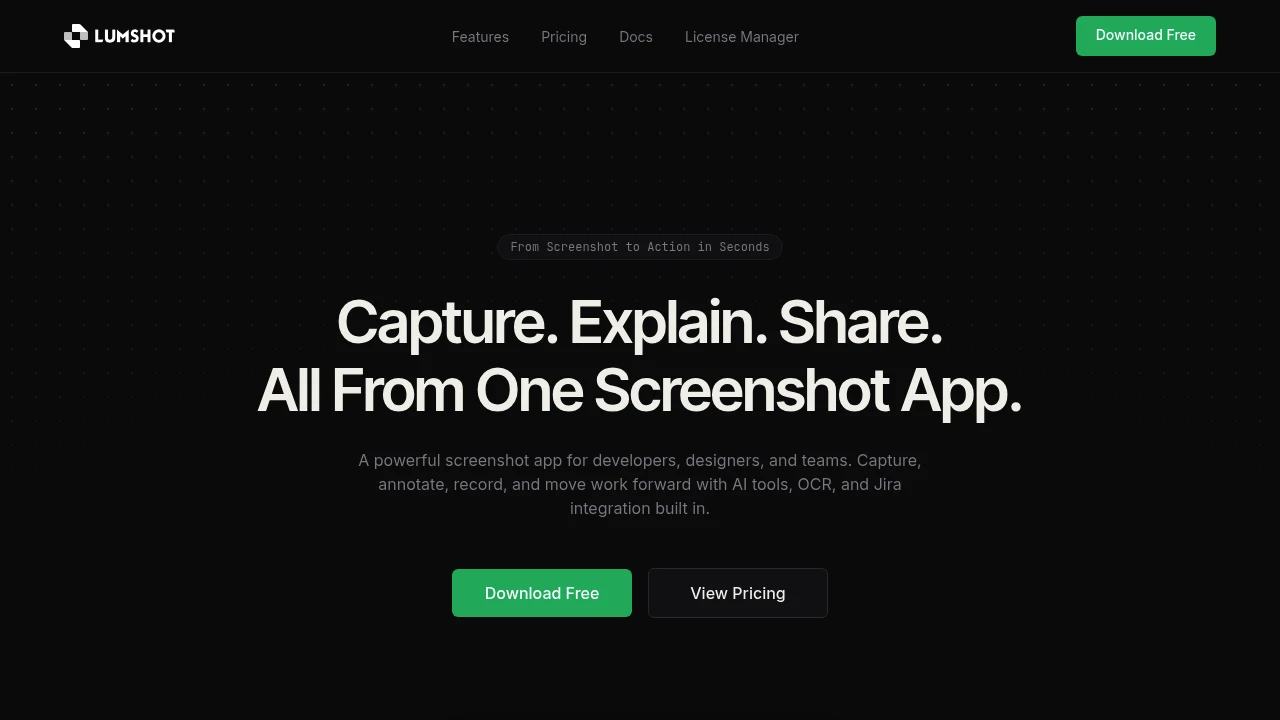
This desktop screenshot app is built for developers, designers, and teams that need to capture, explain, and share visual information quickly. It combines screenshot capture with annotation, OCR, screen recording, smart redaction, and AI-assisted workflows, helping users turn a screen grab into useful context without switching between multiple tools.
The app is designed for workflows such as bug reporting, design reviews, AI-assisted work, and customer support. You can capture a screen, mark up an issue, extract text, record a walkthrough, or turn the capture into a task while staying within the same workflow. It runs on Windows and macOS and supports local processing for capture, text reading, and redaction.
Key Features
Smart Annotation
Explain bugs, design decisions, and visual issues directly on screenshots with built-in annotation tools.
- Arrows
- Text
- Shapes
- Highlights
- Blur
Unlimited annotations make the tool practical for repeated review and communication workflows.
AI Chat Auto Paste
Send screenshots directly into supported AI chats without manually saving and uploading files.
Supported AI tools include:
- ChatGPT
- Claude
- Cursor
This makes it easier to move from a visual problem to an AI-assisted explanation or solution without interrupting the capture workflow.
Jira Integration
Turn annotated screenshots into Jira issues with fewer manual steps.
The integration can use AI to draft issue details from the captured context, helping teams move from identifying a bug to creating a structured task more quickly.
OCR Text Extraction
Extract text directly from screenshots so you can copy, edit, and search information that would otherwise remain locked inside an image.
This is useful for capturing text from applications, webpages, error messages, documents, and other visual content.
Screen Recording
Record your screen when a static screenshot does not provide enough context.
Screen recording can be used for:
- Bug reports
- Product walkthroughs
- Demonstrations
- Support explanations
- Design reviews
Scrolling Capture
Capture content that extends beyond the visible screen.
Scrolling capture is useful for long webpages, documents, conversations, and other content that cannot fit into a single standard screenshot.
Smart Redaction
Protect sensitive information before sharing screenshots.
The smart redaction workflow can hide details such as:
- Email addresses
- API keys
- Other sensitive information
This helps teams prepare screenshots for external sharing without manually searching every capture for private details.
Drag to Share
Move screenshots directly into other applications without first saving a file.
Drag captured images into chats, email, and other apps to share visual context with fewer steps.
Built For Developers, Designers, and Teams
The app is designed for people who communicate visually throughout the workday.
It is particularly useful for:
- Developers reporting bugs and sharing technical context
- Designers reviewing interfaces and explaining visual decisions
- Product teams turning screenshots into actionable tasks
- Support teams communicating customer issues
- AI users sending visual context to ChatGPT, Claude, and Cursor
- Teams collaborating through screenshots, recordings, and annotated captures
Common Use Cases
Bug Reporting
Capture an issue, annotate the relevant area, and create a Jira issue with AI-assisted details.
Design Reviews
Highlight specific interface elements, add notes, and communicate visual feedback without relying on long written explanations.
AI-Assisted Work
Send screenshots directly into supported AI chats to provide visual context without manually uploading files.
Customer Support
Capture and redact relevant information before sharing visual explanations with customers or teammates.
Product Walkthroughs
Use screen recording when an image cannot adequately explain a workflow or issue.
Long-Page Capture
Capture complete webpages, documents, and conversations with scrolling screenshots.
Local Processing and Desktop Workflow
The app is designed for Windows and macOS with a clean desktop interface. Capture, text reading, and redaction can use local processing, keeping these core workflows close to the device rather than requiring every action to happen remotely.
Local exports also make it possible to keep working with captured material outside the app.
Free and Pro Features
The free version covers core screenshot capture and annotation.
Pro adds:
- OCR
- Screen recording
- Scrolling capture
- AI actions
- Jira issue creation
- Smart redaction
Unlimited annotations and local exports are also supported, making the app suitable for frequent screenshot-based workflows.
Why It Matters
Screenshots often become the starting point for several different tasks: explaining a bug, extracting text, creating a ticket, sharing feedback, or asking an AI assistant for help. Moving between separate capture, annotation, OCR, recording, and project-management tools can add unnecessary friction.
This app brings those steps together. Capture the screen, explain what matters, extract information, protect sensitive details, and share the result without leaving the workflow.
Turn Screenshots Into Useful Context
Capture, annotate, extract, record, redact, and share visual information from one desktop workflow built for developers, designers, and teams.


