
SD AI Studio
Creates cinematic videos from text or a reference image with native audio, aspect ratio control, and production-oriented settings.
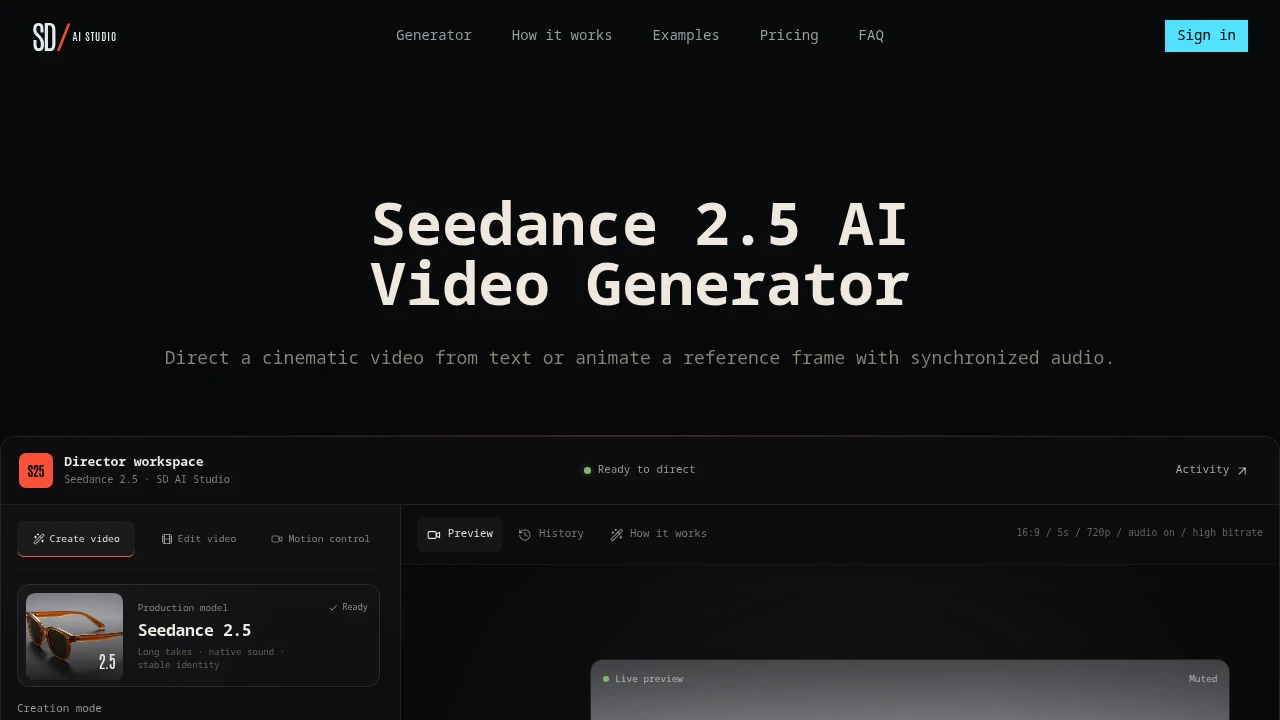
This AI video generator is built for creators who want more control over short cinematic videos than a simple text prompt can provide. It uses a director-style workspace where users can guide a shot with creative instructions, motion cues, camera direction, and reference assets.
The platform supports both text-to-video and image-guided video generation. Users can control elements such as the first and last frame, extend existing video, provide references, direct motion, and adjust the final output settings. Its focus on longer takes, stable identity, and native audio makes it suitable for concept videos, product shots, scene tests, and other footage where visual continuity and sound matter.
Key Features
Text-to-Video Generation
Create video clips from written creative direction.
Users can describe the scene, action, mood, movement, and visual intent through text.
The generation workflow can be used for content such as:
- Cinematic scenes
- Product shots
- Concept videos
- Creative experiments
- Scene tests
- Marketing visuals
- Short-form footage
This gives creators a starting point without requiring an existing source image or video.
Image-Guided Video Creation
Use reference images to guide the generated video.
The platform supports image-based inputs that can help define the visual direction of a shot.
Reference images can be useful for guiding elements such as:
- Subject appearance
- Visual style
- Scene composition
- Character identity
- Product appearance
- Overall framing
This gives users more control than relying only on a written description.
Reference Asset Support
Guide video generation using multiple types of creative assets.
The workspace can use:
- Images
- Video references
- Audio references
These inputs can provide additional context for the generated result.
This can be useful when users want to communicate a specific visual, motion, or audio direction without describing every detail through text alone.
First and Last Frame Control
Guide how a shot begins and ends.
The platform supports first and last frame control, allowing users to provide direction around the opening and closing state of a generated video.
This can help with:
- Shot composition
- Scene transitions
- Character positioning
- Product movement
- Visual continuity
- Connecting multiple clips
Frame control gives creators more structure when generating a specific sequence rather than an isolated video.
Video Extension
Extend an existing generated clip.
The video extension feature allows users to continue footage instead of generating every new sequence from the beginning.
This can be useful for:
- Creating longer takes
- Continuing motion
- Extending a scene
- Building connected sequences
- Maintaining visual continuity
The workflow can reduce the need to restart the generation process when a shot needs to continue beyond its original duration.
Creative Direction Controls
Add more detailed intent to the generation process.
The platform is designed around director-style instructions rather than only basic subject descriptions.
Users can guide the result through creative direction related to:
- Scene intent
- Mood
- Motion
- Camera behavior
- Visual pacing
- Shot composition
This allows users to shape how the scene should feel as well as what should appear in it.
Motion-Focused Direction
Describe how the camera or subject should move.
The workspace supports motion-oriented creative cues.
Examples can include directions such as:
- Slow tension
- Handheld follow
- Product orbit
These types of instructions can help users communicate the intended movement and energy of a shot.
This is useful for creators who want to direct motion instead of generating a completely unspecified animation.
Camera Language
Use cinematic terminology to guide the shot.
The platform allows creative direction that can incorporate camera-oriented instructions.
This can help users think about generation in terms of:
- Camera movement
- Subject tracking
- Shot pacing
- Framing
- Visual tension
- Scene progression
The director-style workflow is intended to provide more structured creative control than a standard prompt box.
Stable Identity
Maintain greater consistency across generated footage.
The platform emphasizes stable identity as part of its video generation workflow.
This can be important when creating multiple shots involving:
- The same character
- A recurring person
- A product
- A visual subject
- Connected scenes
Maintaining consistency can make generated clips more suitable for workflows where individual shots need to feel related to one another.
Longer and Continuous Takes
Generate footage designed around longer takes and continuous motion.
The model focuses on supporting longer sequences rather than only isolated moments.
This can be useful for:
- Scene development
- Product demonstrations
- Continuous camera movement
- Cinematic concepts
- Connected visual sequences
Combined with video extension and frame controls, this can help users create footage with a stronger sense of continuity.
Native Audio
Generate audio alongside the visual output.
The platform includes native audio generation as part of the video workflow.
This can include elements such as:
- Dialogue
- Ambient sound
- Scene atmosphere
This helps keep audio connected to the generated scene rather than requiring users to build every sound element separately after rendering the video.
Dialogue and Ambience
Create scenes where sound belongs with the visual action.
The native audio capabilities can support:
- Character dialogue
- Environmental ambience
- Scene-based sound
This can be useful for concept clips and cinematic scenes where the audio is intended to feel connected to the footage.
Output Format Controls
Adjust the technical settings of the generated video.
Users can control output settings such as:
- Video duration
- Aspect ratio
- Render quality
- Bitrate
This makes it easier to prepare a clip for a particular destination or production requirement.
Aspect Ratio Selection
Choose a format that fits the intended use of the video.
The platform supports aspect ratio selection, including formats such as:
- 16:9
This allows users to guide the composition based on where the finished footage will be used.
Quality and Bitrate Controls
Adjust the rendering settings for the final output.
Users can select options related to:
- Render quality
- Bitrate
This provides additional control when balancing output quality and the requirements of a specific workflow.
Live Preview
Review the generated work from within the workspace.
The platform includes preview functionality that allows users to inspect the result while working.
This can help creators review:
- Motion
- Composition
- Visual direction
- Shot continuity
- Overall appearance
The preview workflow makes it easier to evaluate a direction before moving on to the next shot or render.
Render History
Keep track of previous generated outputs.
The workspace includes render history, allowing users to review previous generations.
This can be useful when:
- Comparing different creative directions
- Reviewing earlier versions
- Testing multiple motion styles
- Comparing output settings
- Returning to a previous result
This gives creators a clearer record of the experimentation process inside the same workspace.
Built for Directed AI Video Creation
This AI video generator combines text-to-video generation, image-guided creation, reference assets, frame controls, video extension, motion direction, native audio, and output settings into one director-style workspace.
Key benefits include:
- Text-to-video generation
- Image-guided video creation
- Image, video, and audio references
- First frame control
- Last frame control
- Video extension
- Creative scene direction
- Motion-focused prompts
- Camera language support
- Stable subject identity
- Longer and more continuous takes
- Native dialogue and ambience
- Duration controls
- Aspect ratio selection
- Quality and bitrate settings
- Live preview
- Render history
Built For
- Content Creators
- Filmmakers
- Video Editors
- Creative Directors
- Marketing Teams
- Brands
- Agencies
- Product Marketers
- Designers
- Storyboard Artists
- AI Video Creators
- Social Media Teams
- People Creating Cinematic Concepts
Common Use Cases
- Creating cinematic concept clips
- Generating product shots
- Testing scene ideas
- Creating image-to-video sequences
- Directing camera movement with text
- Building longer AI-generated takes
- Extending an existing video clip
- Creating connected shots with first and last frame control
- Testing different motion directions
- Generating scenes with dialogue and ambience
- Creating marketing footage
- Developing visual concepts before production
- Comparing multiple versions of the same shot
- Creating video from reference images
- Producing footage with consistent visual identity
Why It Matters
Many AI video tools begin and end with a basic prompt box. While that can be useful for quick experimentation, it gives creators limited control when they need a specific camera movement, scene transition, subject appearance, motion style, or connected sequence.
This platform takes a more directed approach by combining text prompts with reference assets, creative labels, camera language, first and last frame controls, and video extension. Users can guide how a shot starts, how it moves, and how it develops rather than relying entirely on a single generic prompt.
The focus on stable identity, continuous takes, and native audio also makes the workflow more suitable for footage where multiple elements need to work together. Dialogue, ambience, motion, and visual continuity can be considered as part of the same generation process.
Direct Cinematic Shots With More Than a Text Prompt
Start with text, an image, video, or audio reference, add creative direction and motion cues, control the first and last frame, extend generated footage, guide the camera with director-style language, generate scenes with native dialogue and ambience, adjust duration, aspect ratio, quality, and bitrate, preview the results, and review render history from one workspace designed for controlled AI video creation.


